https://chrome.google.com/webstore/detail/go-to-playing-tab/hmbhamadknmmkapmhbldodoajkcggcml/related?hl=en-US
Thursday, June 25, 2020
Chrome extension to locate music playing in a tab
https://chrome.google.com/webstore/detail/go-to-playing-tab/hmbhamadknmmkapmhbldodoajkcggcml/related?hl=en-US

Use Vive controller to control camera in Unreal engine
We can use the first person template in unreal to use a Vive controller to control camera in Unreal engine.
create a new project, choose games>first person template
once the template opens select your FirstpersonCharacter in the world outliner, and in the "pawn" dropdown turn the check on for:
Use controller rotation Yaw
Use controller rotation Pitch
Use controller rotation Roll


create a new project, choose games>first person template
once the template opens select your FirstpersonCharacter in the world outliner, and in the "pawn" dropdown turn the check on for:
Use controller rotation Yaw
Use controller rotation Pitch
Use controller rotation Roll

Then click edit FirstPersonController up in the world outliner to open the blueprints for it

Now in the components section in the top left you need to either child the main camera to one of the motion controllers if you are ok using that camera. Or in my case create a new cinecamera. Child it to the motion controller and delete the original camera.
If you delete the original camera. When you try to run you will get 3 errors in the compile, because the new camera isn't linked. Go ahead and run, then go back to edit FirstPersonController. You will see the errors in the compioler restults just click the link where it says "target" and it will take you to the problem node.

Now just drag your cinecamera into the Target field for each of hte erroring nodes. This will relink the camera in the three places it was deleted from.
Now run the app and you should be able to control the camera using a vive controller!
Wednesday, June 17, 2020
Add vray subdivision node to all selected objects in Maya MEL

Simply select all your geo, paste into the MEL script line in maya and hit enter!
{
string $sel[] = `ls -sl -dag -s`;
for ($each in $sel){
if (`nodeType $each`=="mesh"){
print ("// adding VRay subdivision attributes to "+$each+"\n");
vrayAddAttr($each, "vraySubdivEnable");
vrayAddAttr($each, "vraySubdivUVsAtBorders");
}
}
}
Alternatively, this tip from Raymond in the comments below. If you would like ONE vray subdivision node to effect all objects. Which is easier to control simply:
Select your objects, then: Create > VRay > VRay Displacement > Apply Single VRayDisplacement Node To Selection
Then on the VRayDisplacement node, in the Attribute Editor: Attributes > VRay > OpenSubDiv (or whatever you want)
Alternatively, this tip from Raymond in the comments below. If you would like ONE vray subdivision node to effect all objects. Which is easier to control simply:
Select your objects, then: Create > VRay > VRay Displacement > Apply Single VRayDisplacement Node To Selection
Then on the VRayDisplacement node, in the Attribute Editor: Attributes > VRay > OpenSubDiv (or whatever you want)
Unity Oculus Quest VR anti-aliasing workaround, MSAA
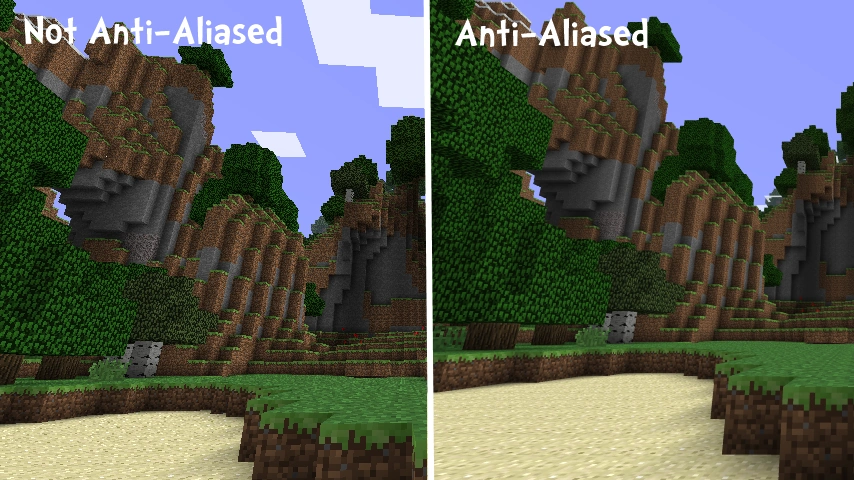
For some reason MSAA antialiasing doesn't seem to work when attempting to develop for the Oculus Quest. The setting simply has no effect. A workaround is to apply a very slight scaling effect via a little code. This really does work and softens those jaggy lines!
Just add a game object to your scene, add a custom C# script named "VRRenderScale" to it and replace it's contents with this code.
using UnityEngine;
using UnityEngine.XR;
public class VRRenderScale : MonoBehaviour {
void Start () {
XRSettings.eyeTextureResolutionScale = 1.5f;
}
}
It will effect performance if we increase it a lot. In my experience 1.5f was a pretty subtle effect. 2.5f was definitely noticeable but did decrease performance. In the end for the project I left it at 2.5f even though the frame rate descreased it still worked fine for my application.
Subscribe to:
Posts (Atom)