Search Maya Zest


Showing posts with label Tutorial. Show all posts

Monday, July 22, 2013

Ptex displacement and texturing in Mudbox to V-ray for Maya PART 2


This tutorial presumes you have already completed Part 1 and are ready to import your Mudbox model to Maya and Render it in V-ray.
  • SETTING UP PTEX DISPLACEMENT IN MAYA
  1. Open Maya and import the level 0 OBJ you exported from mudbox. Don't try and use the original base mesh that you imported into mudbox.(pic)

  2. Select your mesh, open the attribute editor, and have your object's Shape node tab selected. Then in the attribute editor's menu click 'Attributes -> V-Ray' and check 'Subdivision', 'Subdivision and Displacement Quality' and 'Displacement Control' to add those extra attributes to your mesh's Shape node.

  3. Scroll to the bottom of the attribute editor and expand the 'Extra V-Ray Attributes' rollout.
  4. Set 'Render As A Subdivision Surface' to CHECKED.
  5. Set 'Subdivide UVs' to UNCHECKED.
  6. Set 'Edge Length' to a value of 4.0 to begin with, and lower as needed for better displacement quality (At the expense of higher render times).
  7. Select 'Normal Displacement' from the Displacement Type dropdown.
  8. Set 'Keep Continuity' to CHECKED.
  9. Leave all other settings at their defaults. Here is a screen shot of the above settings to verify


  10. Right click on your model, create a VRayMtl for it with the menus 'Assign New Material' Select a vraymtl and assign it to your mesh. 


  11. With you model selected, open your hypershade, in the hypershade go to the menu graph> graph materials on selected objects. This will show the nodes for your vraymtl material.


  12. Type 'dis' in the hypershade search box. And click 'Displacement' to add a 'Displacement' node to the work area from maya's list of hypershade nodes on the left, then middle-click-drag from the Displacement node to the VRayMtlSG node and then select 'Default'.


  13. Now type 'ptex' in the hypershade search box. Add a 'Vray Ptex' node middle-click-drag from the v-ray ptex node node to the Displacement node and then select 'Other...'


  14. The connection editor pops up. On the left side of the connection editor, click the plus next to 'OutColor' to expand it and select 'OutColorR', then select the 'Displacement' value on the right side to connect them. Close the connection editor.


  15. Now select the 'VrayPtex1' node in hypergraph, open the attribute editor, and click the file icon next to 'ptex file name' and load the Ptex displacement map file you exported from mudbox during part 1 of the tutorial.


  16. Let's do a test render. Our Ptex Displacement map should be working but some of the indentations are 'filled in' let's fix that or not quite accurate.


  17. Select your mesh and open the attribute editor. Select the 'Shape' node and open up the 'extra Vray Attributes' dropdown. Down at the bottom of that you will see a black and white color swatch . Click the 'Displacement Bounds' drop down menu and select “Explicit”


  18. Click on the black color swatch below that next to 'MIN value'. A color picker comes up put '-1' in the 'V' attribute.


  19. Do another test render. Now it should be working properly!


  • ADD YOUR PTEX TEXTURE
I'm going to add a quick v-ray dome light, and a directional light with shadows so we can see our model better. I'm also turning on GI rendering because this is what I will be using in my final render.


  1. In your hypershade select your VrayMtl1 material, and pull up your attribute editor for it on the right side of maya.

  2. Now in the hypershade type ptex in the search box and create a new Ptex node, select it in the hypershade. In the atribute editor Click the file icon next to 'Ptex File Name' and locate your Ptex texture we exported from Mudbox during part 1.


  3. Now select your VrayMtl in the hypershade to bring up it's attributes.
  4. Middle mouse button click and drag the VrayPtex2 node onto the Diffuse Color slot in your vraymtl material.


  5. Open the Maya Render Settings window, go to the 'V-Ray' tab, and open the 'Global Options' rollout. Make sure that the checkbox next to 'Displacement' is checked.

  6. Render again and the texture should be applied. If you need to add any more maps bump, specular etc. Just create a new ptex node in the and middle mouse drag it into the appropriate slot of your material.


That's it! You can now use Ptex files you have painted in Mudbox in V-ray for Maya! The cool thing is it's not hard to bring your PTEX back to a UV workflow. But that is a topic of another tutorial. :) Comment below if you are interested in a tutorial on that!

Please check "HELPFUL" below if it was, if not COMMENT below and tell me why! Don't miss another tutorial or tip! Subscribe to Maya Zest


Tuesday, July 9, 2013

How to make volumetric lights and fog in V-ray for Maya (God rays)


This is not that hard to accomplish but no one ever writes tutorials on it! How frustrating... here is how to do it.

NOTE: The fog effect will be affected by the scale of your scene so probably best to work in real world scale. This tutorial was done at a relatively small scale so you may need to adjust your numbers some from my values.

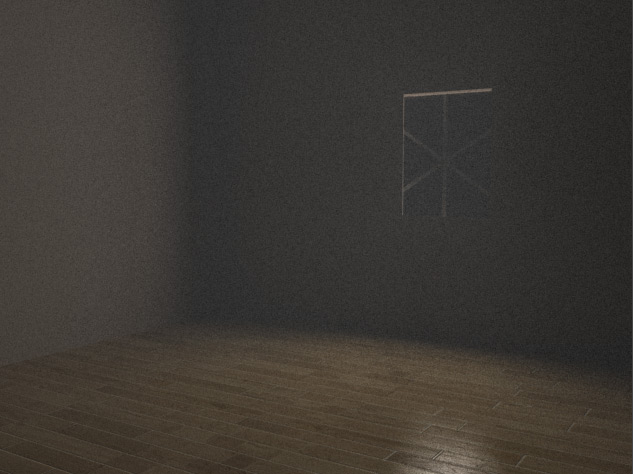
First set up the scene for you shafts of light. In this case we are going to make a window with sunlight flowing in the window.

I've created a simple hollow box with a cut out in the wall for the window.


Create an area light top create menu>lights>v-ray rect light. and position it in your window to give you some soft ambient light filtering int other room.


Now in your V-ray render settings. Indirect illumination tab let's turn on GI.


Now create a normal spot light creat menu>lights>spot light.

Position your spot light so that it some distance away from your window and focused in on it. Narrow the angle on the light so that it's literally spotted right on the window.If it helps you can select the light in the outliner and then in your viewport Panels>Look through select to aim it
right in line wit the opening. Make sure to turn on "Use Raytrace Shadows" in your spot lights settings.

You should have something like this we can see the spot light gently hitting the floor.


Now let's turn on volumetrics. Goto your V-ray render settings. v-ray Tab. Then to the Environment sub drop down. Turn on "Use environment volume" checkbox. An press the checkerboard box to load it.


The create render node screen comes up. Type "fog" in the quick search box at the top option to select Vray Environment.


Now press the arrow next to the Environment Shader to see the settings for your fog effect. Let's do a test render.


At the default settings the scene may be very dark or even render black. This is because of how thick the fog is.

Now you could turn the fog density down, but then you will lose your "shafts effect" so let's instead turn the lights up.

First turn your area light at the window up to 3.


Now let's turn our spot light up to 300.


And now we finally have shafts beginning to show up. Everything is pixeled though so go back to your fog settings.

Render settings>V-ray Tab>environmental drop down. Press the right arrow. And turn up the Subdive setting on your fog to 32. Then turn the Shadows rays up on your area light and spotlight to 24. To smooth things out.


This should give you a good starting place for creating volumetric light effects on your own. Here is a great


To get even more realism in your Fog you can play with the Scatter GI properties in your fog attributes. Set it from 50-200 to see the effect of the GI bouncing around in the Fog.

The final render is looking much better. Now go make some sweet volumetric scenes with V-ray for maya!!
Please check "HELPFUL" below if it was, if not COMMENT below and tell me why! Don't miss another tutorial or tip! Subscribe to Maya Zest


Thursday, July 4, 2013

How to Add Blend Shapes inbetween blendshapes (Maya)

This process seems a little clumsy but once you understand how to do it it's very simple. NOTE that it's important what order you select these models in so pay attention.

First created your base object duplicate it and create your end goal blendshape version

Select your base model (in my case the open book) hold shift and select
your TARGET blendshape. (the closed book)

Go to the top "Window" menu then submenus Animation Editors>Blendshapes


The blendshape window appears. Go to "Edit" menu in the top of it then "create blendshape"

A new blendshape1 node appears in your Blend shape editor. With a slider from 0.000 - 1.00

Test it out and you will see your blendshape (open book) is working in your TARGET model (closed book). The closed book opens. However at the midpoint .5 in the slider the blend doesn't look very good. Let's fix that.

In your TARGET model (closed book) with the blendshape node take the slider to .5 (or whatever point at which you want to create the transition blendshape) Duplicate the TARGET model at this point.


Make your changes to the new model. Reset your TARGET model back to 0 on
the slider just to be safe. Then select your new inbetween blendshape model
hold shift and select original TARGET model as well. (closed book)

Now go to the Animation menu set top left>Edit deformers>Blendshape>add> press the little settings box next to add.


This brings up the Add blend shapes Target options screen.

At the top you can specify which blendshape slider you are adding this
inebtween to. In my case blendshape1. Change that if you need to. Check
mark "Add in between target" Set the inetbween weight to .5 (or whatever
spot you want the blendshape to effect the slider.


Now for the Target index. Here is an explanation of that value.
If the blend shape deformer blends target object shapes in parallel (the
In-Between creation option was off when you created the blend shape
deformer), you can add the new target object shapes so that they work in
series with one of the existing target object shapes. One quick way you can
identify the appropriate value for Target Index is by looking at the order
of the target sliders in the Blend Shape Editor (Window > Animation Editors
> Blend Shape). Note that in the editor, each target object shape has its
own target slider. In the editor, going from left to right, the Target
Index value for the left-most target slider would be 1, the next 2, and so
on.

If the blend shape deformer blends target object shapes in series (the In-
Between creation option was on when you created the blend shape deformer),
Target Index can only be 1 because there is only one target slider. In this
case, you don’t have to specify Target Index, but you do need to specify
the In-Between Weight.

Based on this explaination you may or may not need a Target index number. In my case I
just needed an inbetween weight. Once your settings are in. Hit apply and
close.

Now your Target (Closed book) will have a slider that goes from the base blendshape to the target blendshape and use the new blendshape in the middle.

Please check "HELPFUL" below if it was, if not COMMENT below and tell me why! Don't miss another tutorial or tip! Subscribe to Maya Zest

Wednesday, November 30, 2011

How to convert Autodesk Max V-ray To Maya V-ray materials?


NOTE: Several people have commented that this doesn't work for them anymore. I don't have access to Max any longer so I can't test it unfortunately. If it does work for you please comment below so that others can find out what worked for you.

If you find yourself cursing Mental Ray's integration to Maya then you OWE it to yourself to try V-ray for Maya. It's a whole different ball game of ease and happiness instead of horror and retribution! However you will notice that there are TONS of V-ray materials available for Max but not so many for Maya. Terribly unfair by my estimation, here is the solution!

Saturday, September 17, 2011

Detailed Brushed Metal Anisotropic Shader tutorial (maya)


First off Anisotropic shaders are bit tricky, how good they look has a LOT to do with the environment and lighting. You can have the greatest shader in the world but unless those other two factors are also perfect you WON'T SEE IT.

ANISOTROPIC SHADER RECIPE


Monday, September 12, 2011

Creating a realistic brick shader with randomly shuffled tiles in Maya. Tutorial


1. Creating a realistic brick shader with randomly shuffled tiles in Maya.

This technique may look a little complex but you will find it is very useful! You could use it to create mixes of tiles for floors space ship hulls all kinds of things.

Saturday, August 13, 2011

Create and animate growing tube, rope, plant (MAYA)


There are a number of tutorials on the web for animating a growing vine, tube or rope along a path. I noticed however that steps are sometimes left out which might make it difficult for some to accomplish the effect. Here this is the process I went through to make it work.

Friday, January 28, 2011

Creating a nice brushed metal (anisotropic) shader with Mental Ray tutorial


ANISOTROPIC SHADER RECIPE

Here is a mix for creating an Anisotropic shader in Maya and Mental Ray. How good metal looks is very dependant on your lighting so keep that in mind.

CLICK HERE FOR THE DETAILED VERSION OF THIS TUTORIAL

Create a new Anisotropic Maya node and apply it to your object.

Now create a quick area light to hit up our object with. Menus: Create>Lights>Area Light. Position the light above your object.

I'm also just going to put a simple wood texture on the floor just to give us more
reflections to play with in the scene. Do a render to see what you are getting.

In your hypershade select your anisotrpic1 node. In the Attribute Editor under the drop
down Specular Shading DISABLE the Anisotrpic Reflectivity Checkbox. This will let you
control the level of reflectivity yourself.

Then make these settings to the anisotrpic

Reflectivity 0.736

Diffuse setting to 0.132

Spread X to 7.532 and Spread Y to 5.882

Roughness to .7

Fresnel Index to 2.0

Go to render options menu: Window>Rendering Editors>Render Settings. Then to the
Indirect Lighting Tab at the top of this you will see Image Based Lighting. Click the
CREATE button next to it. Immediately an IBL node system will be set up in your scene,
though it may look like nothing happened.

In the attribute editor it should open your IBL atributes. click the small folder to
load an HDR file. These can be downloaded from many free sites online.


Now we have nice anisotropic highlights but perfectly crisp reflections.

In the hypershade create a 2D as projection NOISE node. Make the following settings

Threshold 0.1
Amplitude 0.140
Ratio 1.0
Requency Ratio 1.744

Next in hypershade select the place2Dtexture node attached to your noise1 node. In the
attribute editor increase the "RepeatUV" fields to these values. U is first V second.

U 0.05
V 100

Basically, this just makes streaks. Now attach it to your Anisotropic shader's
reflections. First in the hypershade select the anisotropic_noise1 node. In your
attribute editor expand the Mental Ray drop down. You will see a Mi Reflection blur
attribute.

Now in your hypershade MIDDLE house click and hold down on the projection1 node. Drag it
over to the attribute editor and connect it to the Mi Reflection blur attribute.

The connection editor will appears. Connect OUTALPHA on the left to miReflectionBlur on
the right

Now let's render and see what we are getting.


To smooth grain of the reflection select your anisotropic1 node in the hypershade then
in the Attribute Editor expand the Mental Ray drop down and set the Reflection Rays
setting to 50.  


In your Hypershade under Create Maya Nodes, scroll down to the 3D textures drop down
and create a new Cloud node.

Connect the cloud node to the color aatribute on your anisotrpic node.

That's it you should have a very good starting place for anisotropic metals with this
shader.


If you want to pick up the exact shader that I am using in my Espresso scene at the top you can Subscribe to Maya Zest and I'll email it to you as a thank you.


Thursday, January 20, 2011

Tutorial - Maya's Paint Geometry Tool


Maya's Paint Geometry Tool from Alex Villabon on Vimeo.

Please check "HELPFUL" below if it was, if not COMMENT below and tell me why! Don't miss another tutorial or tip! Subscribe to Maya Zest